Microsoft Teams’ Collaboration Tools: An In-Depth Review

Microsoft Teams stands as a pivotal platform for modern workplace collaboration, integrating communication, file sharing, and productivity applications into a unified environment for enhanced team efficiency.
In today’s fast-paced digital landscape, effective collaboration is paramount for business success. As organizations increasingly adopt hybrid and remote work models, the demand for robust, integrated communication platforms has skyrocketed. This is where an In-Depth Review: Microsoft Teams’ Collaboration Tools becomes crucial, offering a comprehensive look at a solution designed to meet these evolving needs.
Understanding Microsoft Teams: More Than Just Chat
Microsoft Teams has evolved significantly from its origins as a simple chat application. It now serves as a central hub for teamwork, integrating various Microsoft 365 services into a single, cohesive interface. This integration aims to streamline workflows, reduce context switching, and ultimately boost team productivity, making it a cornerstone for many enterprises.
The platform’s core strength lies in its ability to consolidate communication channels. Users can engage in instant messaging, voice and video calls, and organized meetings, all within the same application. This eliminates the need to switch between multiple tools for different communication needs, fostering a more fluid and efficient interaction environment.
Integrated Communication Capabilities
One of the most compelling aspects of Microsoft Teams is its multifaceted approach to communication. It offers a spectrum of options, from quick, informal chats to structured, large-scale meetings, ensuring that teams can connect in the most appropriate way for any given situation.
- Persistent Chat: Teams and channels provide a structured space for ongoing conversations, ensuring that discussions are organized and easily searchable.
- Video Conferencing: High-definition video and audio calls support both one-on-one and group meetings, complete with features like screen sharing, virtual backgrounds, and recording.
- Voice Calling: Integration with phone systems allows Teams to function as a complete unified communications solution, enabling external calls directly from the application.
- Live Events: For larger audiences, Teams offers live event capabilities, facilitating webinars and company-wide broadcasts with interactive Q&A sessions.
Beyond these primary functions, Teams also supports guest access, allowing external collaborators to join channels and meetings without requiring a full Microsoft 365 license. This flexibility is invaluable for project-based work with external partners or clients, enhancing the platform’s utility as a universal collaboration tool. The seamless transition between these communication modes is a significant advantage, allowing users to escalate a chat to a call or meeting with a single click, maintaining the flow of conversation and collaboration.
Seamless File Sharing and Document Collaboration
At the heart of any effective collaboration suite is the ability to share and co-edit documents effortlessly. Microsoft Teams excels in this area, leveraging its deep integration with SharePoint, OneDrive, and other Microsoft 365 applications to provide a robust file management and co-authoring experience.
When files are shared within Teams, they are automatically stored in SharePoint or OneDrive, depending on whether they are shared within a channel or a private chat. This ensures version control, security, and accessibility across all devices. Teams eliminates the confusion often associated with email attachments and multiple document versions, centralizing all related files within the context of a team or project.
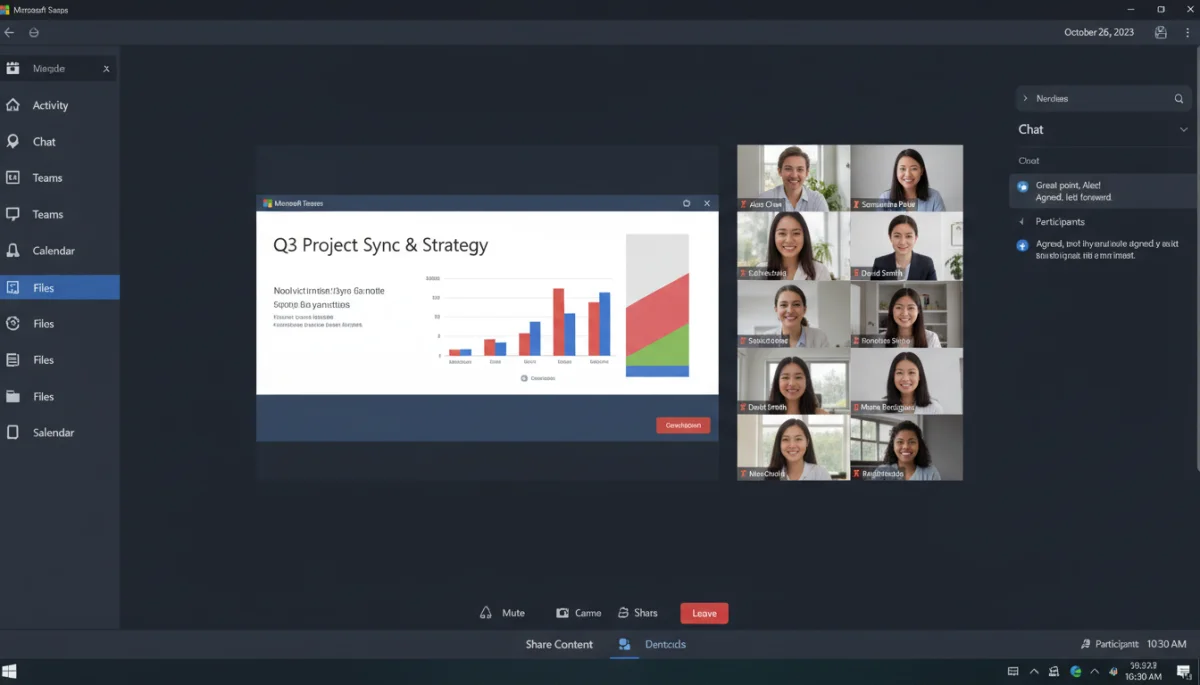

Real-time Co-authoring and Version Control
The ability for multiple users to work on the same document simultaneously is a game-changer for productivity. Teams facilitates real-time co-authoring for Word, Excel, PowerPoint, and OneNote files, allowing team members to see each other’s edits as they happen. This drastically reduces turnaround times and ensures that everyone is working on the most current version of a document.
- Simultaneous Editing: Multiple users can open and edit the same document at the same time, seeing changes in real-time.
- Version History: SharePoint’s robust version control tracks every change, allowing users to revert to previous versions if needed, providing a safety net for collaborative work.
- File Comments and Mentions: Users can add comments directly within documents or mention colleagues to draw their attention to specific sections, fostering focused feedback loops.
- Secure Sharing: Granular control over sharing permissions ensures that sensitive information remains protected, with options for internal and external sharing.
This seamless integration with Microsoft 365’s document ecosystem means that users don’t have to leave the Teams application to access, edit, or share critical files. The contextual nature of file sharing within channels ensures that all relevant documents for a project are easily discoverable and accessible to team members, significantly enhancing efficiency and reducing the time spent searching for information.
Project Management and Task Organization within Teams
While not a dedicated project management suite, Microsoft Teams offers substantial capabilities for organizing tasks and managing projects, primarily through its integration with other Microsoft 365 services like Planner, To Do, and Lists. This allows teams to keep track of their work, assign responsibilities, and monitor progress without needing to switch to external applications.
Each channel in Teams can be customized with various tabs, including those for project management tools. This means a team can have a dedicated tab for their project plan, task lists, or even a shared OneNote notebook for meeting minutes and brainstorming. This centralization helps keep all project-related information in one easily accessible location.
Leveraging Planner and To Do
Microsoft Planner is a particularly powerful integration for task management within Teams. It allows users to create boards with tasks, assign them to team members, set due dates, and track progress through various stages. This visual approach to task management is intuitive and effective for many teams.
- Task Creation and Assignment: Easily create tasks, assign them to individuals, and set deadlines directly within a Teams channel.
- Progress Tracking: Visual dashboards and charts in Planner provide a clear overview of task status, helping teams identify bottlenecks and manage workloads.
- Checklists and Attachments: Tasks can include detailed checklists and attachments, ensuring all necessary information is readily available for completion.
- Integration with To Do: Tasks assigned in Planner automatically appear in individual users’ Microsoft To Do lists, providing a consolidated view of all personal and team responsibilities.
By bringing these project management functionalities directly into the Teams interface, organizations can foster a more organized and accountable work environment. The ability to discuss tasks, share relevant files, and update progress all within the same conversation thread significantly streamlines project execution and ensures that everyone is aligned on objectives and deadlines.
Customization and Integrations: Extending Teams’ Functionality
One of the most significant strengths of Microsoft Teams lies in its extensibility. Beyond its native capabilities and core Microsoft 365 integrations, Teams offers a vast ecosystem of third-party apps and custom development options, allowing organizations to tailor the platform to their specific needs and workflows. This flexibility is crucial for businesses with unique requirements or those already invested in other software solutions.
The Teams app store provides access to hundreds of applications, ranging from project management tools like Asana and Trello to customer relationship management (CRM) systems like Salesforce, and even industry-specific solutions. These integrations allow users to access and interact with external services without ever leaving the Teams interface, creating a truly unified workspace.

Developing Custom Solutions and Bots
For organizations with highly specialized needs, Microsoft Teams offers robust developer tools to build custom applications, bots, and connectors. This allows businesses to automate repetitive tasks, integrate with proprietary systems, and create tailored experiences that enhance productivity and efficiency.
- Custom Apps: Develop applications that live directly within Teams, providing custom functionalities and data views relevant to specific business processes.
- Bots: Create intelligent bots that can answer questions, provide information, and automate workflows, improving user support and operational efficiency.
- Connectors: Integrate external services to push notifications and updates directly into Teams channels, keeping teams informed about critical events from other platforms.
- Power Platform Integration: Leverage Power Apps, Power Automate, and Power BI to build sophisticated business applications and automated workflows that seamlessly connect with Teams.
\
This level of customization and integration ensures that Microsoft Teams can adapt to virtually any organizational structure or workflow. It transforms Teams from a generic collaboration tool into a highly specialized hub that centralizes all aspects of a team’s work, from communication to data analysis and process automation, ultimately driving greater operational efficiency.
Security and Compliance: A Top Priority
In an era where data breaches and privacy concerns are paramount, the security and compliance features of collaboration tools are non-negotiable. Microsoft Teams is built on the robust security infrastructure of Microsoft 365, offering enterprise-grade protection for data, communications, and user identities. This commitment to security is a significant advantage, particularly for organizations handling sensitive information.
Teams adheres to numerous global and industry-specific compliance standards, including GDPR, HIPAA, ISO 27001, and more. This extensive compliance framework helps organizations meet regulatory requirements and maintain data governance, providing peace of mind to IT administrators and users alike.
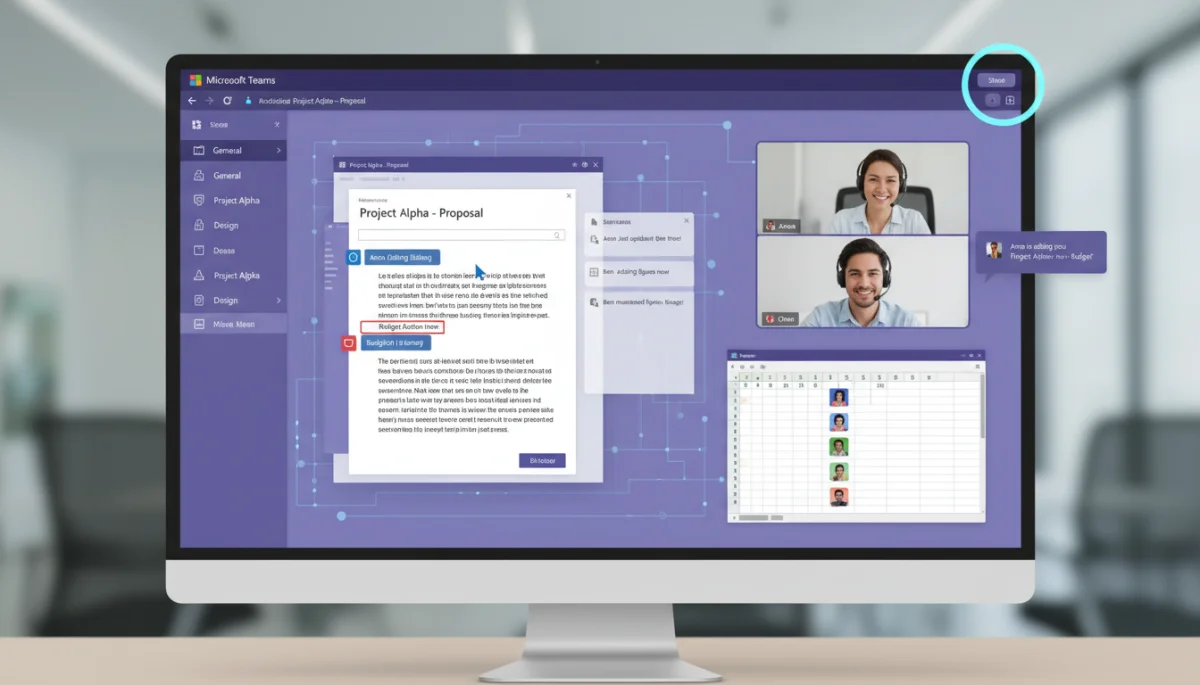

Advanced Threat Protection and Data Governance
Microsoft Teams incorporates a range of security measures designed to protect against various threats, from malware and phishing attacks to unauthorized data access. These features work in conjunction with broader Microsoft 365 security services to provide a multi-layered defense.
- Multi-Factor Authentication (MFA): Enhances account security by requiring multiple forms of verification for user logins.
- Data Loss Prevention (DLP): Prevents sensitive information from being shared inappropriately within or outside the organization.
- eDiscovery and Legal Hold: Supports legal and compliance requirements by enabling organizations to search for and preserve electronic data for investigations.
- Information Barriers: Prevents communication and collaboration between specific groups of users within the same organization, useful for compliance with regulatory standards.
\
\n
Furthermore, administrative controls allow IT departments to configure policies for messaging, meetings, and app usage, ensuring that the platform operates within organizational guidelines. This comprehensive approach to security and compliance not only protects valuable data but also builds trust among users, encouraging broader adoption and more effective collaboration.
Challenges and Considerations for Microsoft Teams Adoption
While Microsoft Teams offers a powerful suite of collaboration tools, its implementation and adoption are not without challenges. Organizations considering or currently using Teams must be aware of potential hurdles to ensure a smooth transition and maximize the platform’s benefits. Addressing these considerations proactively can significantly impact the success of Teams deployment.
One common challenge is user adoption. The sheer breadth of features in Teams can be overwhelming for new users, leading to underutilization or confusion. Effective training and change management strategies are crucial to help employees understand how to leverage Teams effectively for their daily workflows and to integrate it into existing habits.
Navigating Performance and Resource Requirements
Another area of concern for some organizations revolves around performance and resource consumption. Teams can be resource-intensive, particularly during video calls or when multiple applications are running concurrently. This can lead to performance issues on older hardware or in environments with limited network bandwidth, impacting user experience.
- System Requirements: Ensure that user devices meet the recommended specifications for optimal Teams performance, especially for video conferencing.
- Network Bandwidth: Adequate network infrastructure and bandwidth are essential to support high-quality voice and video calls and efficient file transfers.
- Storage Management: Proactive management of SharePoint and OneDrive storage is necessary to avoid hitting capacity limits, especially with extensive file sharing.
- Integration Complexity: While integrations are powerful, managing a large number of third-party apps can introduce complexity in terms of administration and potential conflicts.
\
\
\
Moreover, the integration with the broader Microsoft 365 ecosystem, while a strength, can also be a source of complexity. Understanding how Teams interacts with SharePoint, OneDrive, Exchange, and other services requires a certain level of administrative expertise. Organizations need to invest in skilled IT personnel or external support to manage and optimize their Teams environment effectively. Despite these challenges, with proper planning, training, and ongoing support, most organizations can overcome these hurdles and fully harness the collaborative power of Microsoft Teams.
| Key Feature | Brief Description |
|---|---|
| Unified Communication | Integrates chat, voice, and video calls into a single platform for seamless team interaction. |
| File Sharing & Co-authoring | Enables real-time document collaboration with robust version control through Microsoft 365 integration. |
| Customization & Integrations | Extends functionality with third-party apps, custom bots, and Power Platform for tailored workflows. |
| Security & Compliance | Offers enterprise-grade protection, MFA, DLP, and adherence to global compliance standards. |
Frequently Asked Questions about Microsoft Teams
Microsoft Teams provides a comprehensive suite of collaboration tools including persistent chat channels, high-definition video and voice calling, real-time file sharing and co-authoring for Microsoft 365 documents, and integrated project management capabilities through Planner and To Do. These features aim to centralize communication and workflow.
Files shared in Teams are stored securely in SharePoint for channels and OneDrive for private chats, ensuring robust version control and accessibility. The platform is built on Microsoft 365’s enterprise-grade security, offering multi-factor authentication, data loss prevention, and compliance with various global standards like GDPR and HIPAA.
Yes, Microsoft Teams boasts extensive integration capabilities. It features a vast app store with third-party applications (e.g., Asana, Salesforce) and supports custom development for bots, connectors, and Power Platform solutions. This allows organizations to tailor Teams to their specific workflows and centralize access to various business tools.
Key challenges include user adoption due to the platform’s extensive features, which can be overwhelming without proper training. Additionally, Teams can be resource-intensive, requiring adequate hardware and network bandwidth. Managing complex integrations and maintaining administrative expertise are also common considerations for organizations.
Absolutely. Microsoft Teams is specifically designed to support remote and hybrid work models by providing a centralized hub for communication, collaboration, and project management. Its features, such as video conferencing, file sharing, and task organization, are invaluable for maintaining connectivity and productivity across distributed teams, making it an ideal solution.
Conclusion
In conclusion, Microsoft Teams stands as a formidable and increasingly indispensable tool in the modern collaborative landscape. Its comprehensive suite of features, spanning unified communication, seamless file sharing, integrated project management, and extensive customization options, positions it as a central hub for enhancing productivity and fostering effective teamwork. While challenges related to user adoption and resource management exist, these are often mitigated through strategic planning, robust training, and leveraging its powerful security and compliance frameworks. For organizations navigating the complexities of hybrid and remote work, Microsoft Teams offers a resilient and adaptable platform that can significantly streamline operations and empower employees to connect, create, and achieve together.
